
Convert3 min readUpdated 2026-09-22
How to convert JPG images into one PDF
Combine photos, scans, receipts, or screenshots into a single PDF that is easier to send and archive.
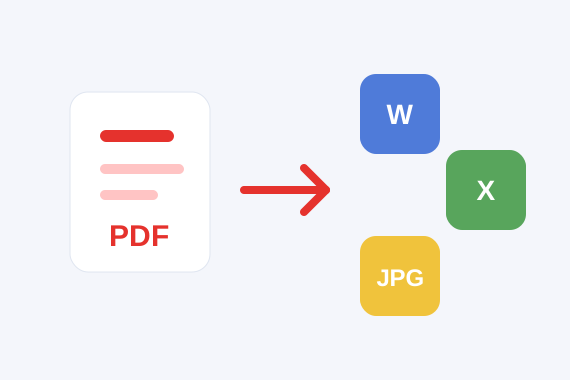
When to use JPG to PDF
Use JPG to PDF when several images should become one ordered document.
- Phone scans, receipts, IDs, handwritten notes, and screenshots.
- Turning image evidence into a single document package.
- Creating a PDF from JPG, PNG, or WEBP images.
How to use it
- 1Select your JPG or JPEG images.
- 2Arrange images in your preferred order.
- 3Start the conversion process.
- 4Download your new PDF file.
How it helps
- Keeps multiple images together in one file.
- Makes printing and emailing image sets easier.
- Lets you order images before creating the PDF.
Practical tips
- Crop or rotate photos before converting when possible.
- Put images in the order you want them to appear.
- Use clear, high-resolution images for readable text.
Honest limits
- The output contains page images, not OCR text.
- Large high-resolution photos can make a large PDF.
Privacy note
Core processing for JPG to PDF runs in your browser. That means the selected file is handled locally by the page instead of being uploaded to a conversion API.